- Tutorials
How to Add Claude AI to WordPress Without Coding
Connect Claude AI to WordPress in minutes — no coding needed. Get started free with Free WordPress MCP today.
WebSensePro
Developer
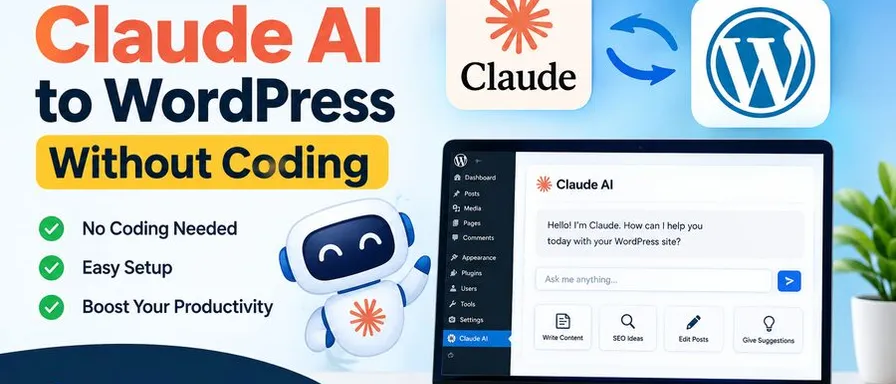
Have you ever wished your WordPress website could think for itself — answer visitor questions, write content, or automate tasks — all without you lifting a finger? Thanks to Claude WordPress integration, that’s no longer a far-fetched dream. And the best part? You don’t need to write a single line of code to make it happen.
In this guide, I’ll walk you through exactly how to connect Claude AI to your WordPress site using Free WordPress MCP — a no-code solution designed to make AI integration simple for everyone, whether you’re a blogger, a small business owner, or a content creator.
What Is Claude AI and Why Should WordPress Users Care?
Claude is an AI assistant developed by Anthropic. It’s designed to be helpful, harmless, and honest — and it’s incredibly capable when it comes to tasks like writing, summarizing, answering questions, analyzing content, and much more.
For WordPress users, Claude AI opens up a world of possibilities:
- Auto-generate blog post drafts based on a topic or keyword
- Create a smart chatbot that answers visitor FAQs in real time
- Summarize long articles into quick reader digests
- Translate and localize content for global audiences
- Generate product descriptions for WooCommerce stores
- Proofread and improve existing content with AI suggestions
The challenge? Most Claude AI integrations traditionally required API keys, custom code, and developer knowledge. That’s where Free WordPress MCP changes everything.
What Is Free WordPress MCP?
Free WordPress MCP is a platform built specifically to help WordPress site owners connect to AI tools, including Claude, without any technical expertise. MCP stands for Model Context Protocol, an open standard that enables AI models to interact seamlessly with external tools and services.
Think of it as a bridge: on one side is your WordPress website, and on the other side is Claude AI. Free WordPress MCP connects the two, so they can communicate and work together — and you manage it all through a simple, user-friendly dashboard.
No PHP. No JavaScript. No API headaches. Just a working Claude WordPress integration in minutes.
What You’ll Need Before You Start
Before diving in, make sure you have the following ready:
- A live WordPress website (self-hosted WordPress.org)
- Admin access to your WordPress dashboard
- A free account on freewordpressmcp.com
- A free or paid Anthropic account (to get your Claude API key)
- About 15–20 minutes of your time
That’s it. No hosting upgrades, no premium plugins required to get started.
Process to Add Claude AI to WordPress Without Coding
Sign Up at Free WordPress MCP
Head over to freewordpressmcp.com and create your free account. The sign-up process takes less than two minutes — just enter your email, set a password, and verify your account.
Once you’re logged in, you’ll land on the main dashboard where you can manage all your WordPress–AI connections.
Get Your Claude API Key from Anthropic
To connect Claude AI to your site, you’ll need an API key from Anthropic. Here’s how to get one:
- Go to console.anthropic.com
- Sign up or log in to your Anthropic account
- Navigate to API Keys in your account settings
- Click Create Key, give it a name (e.g., “My WordPress Site”), and copy the key
Keep this key safe — you’ll paste it into Free WordPress MCP in the next step.
Note: Anthropic offers a free tier with usage credits to get you started. You only need to upgrade if your usage grows.
Connect Claude AI Inside Free WordPress MCP
Back in your Free WordPress MCP dashboard:
- Click on “Add Integration” or “Connect AI Model”
- Select Claude (Anthropic) from the list of available AI models
- Paste your Anthropic API key into the designated field
- Choose your preferred Claude model (Claude Sonnet is recommended for a great balance of speed and quality)
- Click Save & Connect
Free WordPress MCP will verify the connection instantly. Once confirmed, you’ll see a green “Connected” status next to Claude.
Install the Free WordPress MCP Plugin on Your Site
Now it’s time to link your WordPress website to your Free WordPress MCP account.
- In your WordPress dashboard, go to Plugins → Add New
- Search for “Free WordPress MCP” in the plugin search bar
- Click Install Now, then Activate
Once activated, you’ll see a new Free WordPress MCP menu item in your WordPress sidebar.
Connect Your WordPress Site to Your MCP Account
Click on the Free WordPress MCP menu in your WordPress dashboard. You’ll be prompted to:
- Enter the Site Connection Token from your Free WordPress MCP dashboard (found under Site Settings → Connect New Site)
- Click Connect Site
Within seconds, your WordPress site will appear as a connected property inside your Free WordPress MCP dashboard. This is where the magic begins.
Choose How Claude AI Will Work on Your Site
This is the fun part. Free WordPress MCP lets you set up Claude AI to serve your site in multiple ways. Here are some popular options:
Option A: AI Content Assistant
Add a Claude-powered writing assistant to your WordPress editor. As you write posts or pages, Claude can suggest improvements, expand bullet points into paragraphs, or generate entire sections based on your prompts.
To enable: Go to Free WordPress MCP → Features → Content Assistant → Toggle ON
Option B: AI Chatbot for Visitors
Install a Claude-powered chatbot on your website that answers visitor questions using your site’s content as context.
To enable: Go to Free WordPress MCP → Features → Site Chatbot → Configure → Toggle ON
You can customize the chatbot’s name, greeting message, color scheme, and which pages it appears on — all from the dashboard.
Option C: Auto-Summary Widget
Automatically generate a short summary at the top of every blog post so visitors can decide at a glance whether to read on.
To enable: Go to Free WordPress MCP → Features → Post Summaries → Toggle ON → Choose placement (Above/Below title)
Option D: FAQ Generator
Select any post or page, and Claude will automatically generate a relevant FAQ section to boost your SEO and user engagement.
To enable: Go to Free WordPress MCP → Features → FAQ Generator → Select Pages/Posts → Save
Test Your Claude WordPress Integration
Once you’ve enabled your desired features, it’s time to test:
- Visit your website on a new browser tab (or in incognito mode)
- Check that the chatbot appears and responds to questions
- Open the WordPress editor and test the content assistant
- View a blog post to confirm the AI summary is showing
If everything looks good, congratulations — your Claude WordPress integration is live!
Tips to Get the Most Out of Claude on WordPress
Now that you’re up and running, here are a few tips to maximize the value of your Claude WordPress integration:
1. Train the chatbot with your content. The more content your WordPress site has, the smarter your chatbot will be. Make sure your key pages (About, Services, FAQ, Contact) are published and accessible.
2. Use clear prompts in the content assistant. When using Claude to help you write, be specific. Instead of “write about travel,” try “write a 300-word intro about budget travel in Southeast Asia for solo backpackers.”
3. Set usage limits if you’re on a free API tier. In your Free WordPress MCP dashboard, you can set daily or monthly token limits to avoid unexpected charges from Anthropic.
4. Enable Claude only on relevant pages. For the chatbot and summary features, you don’t need to enable them on every page. Focus on high-traffic pages like your blog, homepage, and product pages.
5. Keep your API key secure. Never share your Anthropic API key publicly. Free WordPress MCP stores it encrypted, but it’s a good habit to rotate your key every few months.
Is Claude WordPress Integration Right for Everyone?
Honestly? Yes — and here’s why.
Whether you run a personal blog, a business website, an e-commerce store, or a membership site, Claude AI can add real value. The no-code approach through Free WordPress MCP means you don’t need a developer on standby or a technical background to make AI work for you.
For bloggers, it means faster content creation and smarter audience engagement. For businesses, it means 24/7 customer support through an AI chatbot. For online stores, it means better product descriptions and higher conversions. And for educators or content creators, it means personalized learning experiences at scale.
Final Thoughts
Adding Claude AI to your WordPress site used to feel like something only big tech companies with developer teams could pull off. Not anymore.
With Free WordPress MCP, Claude WordPress integration is now accessible to everyone — no matter where you are in the world, no matter your technical background. You can have a fully functional AI-powered website running in under 30 minutes, for free.
So why wait? Head to freewordpressmcp.com today, create your free account, and start building the AI-powered WordPress site you’ve always imagined.
Ready to Connect Your AI Agent to WordPress?
Free forever. No account, no API key, no usage limits.
Download the plugin and be connected in about three minutes.