- Guides
What Is WordPress MCP? A Plain-English Guide
WordPress MCP lets Claude, Cursor, Codex or any MCP agent read and edit your site directly. Here's what MCP is, how the free plugin works, and how to set it up.

WebSensePro
Developer
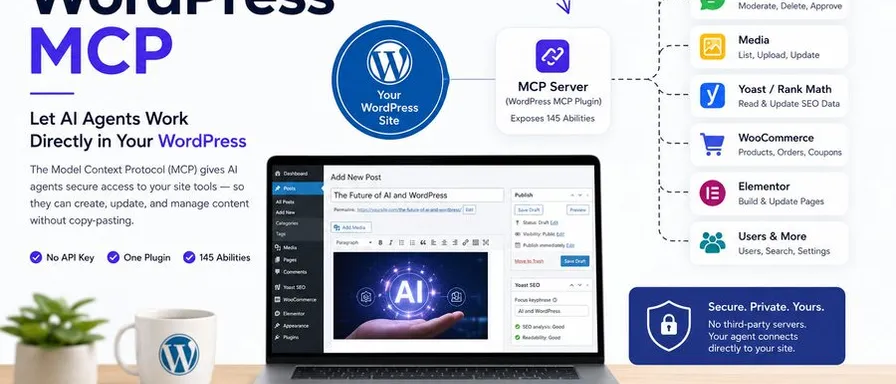
If you have ever asked ChatGPT to write a blog post and then spent ten minutes copy-pasting it into WordPress, fixing the headings, uploading the image and setting the SEO title, you already understand the problem MCP solves.
MCP — the Model Context Protocol — is a standard way for an AI agent to call tools on a system it does not own. WordPress MCP applies that standard to your WordPress site: instead of the agent handing you text to paste, it calls your site directly and does the work.
What MCP actually is
MCP is a protocol, not a product. It defines how an AI client (Claude, Cursor, Codex, Antigravity, and a growing list of others) discovers what tools a server offers, and how it calls them.
A WordPress MCP server exposes your site as a set of named tools — create a post, update a page, list media, read a Yoast focus keyword — each with a documented set of inputs. The agent reads that list, picks the right tool for what you asked, and calls it. Nothing about the agent is WordPress-specific; nothing about your site is agent-specific. That is the entire point of a protocol.
What it looks like in practice
Once your site is connected, the workflow changes shape:
- Before: “Write me a post about X” → agent returns text → you paste, format, add the image, set the excerpt, publish.
- After: “Draft a post about X, set the Yoast focus keyword, add a featured image and save it as a draft” → the agent does all of it, and tells you the post ID.
Real prompts people run against a connected site:
- “Audit my last 20 posts and list the ones missing a meta description.”
- “Find every comment flagged as spam this month and delete them.”
- “Build an Elementor landing page for the pricing offer using the copy in this file.”
- “My product category pages have thin content — draft 150 words of intro copy for each and save as drafts.”
How the free WordPress MCP plugin works
The free WordPress MCP plugin — WSP MCP – AI Agents Connector — turns your site into an MCP server. Three things matter about how it is built:
It is one plugin. The MCP Adapter is bundled inside wsp-mcp-ai-agents-connector.zip, so there is no second plugin to install and keep in sync.
Abilities are opt-in. The plugin ships 145 abilities — 60 read tools and 85 write tools — grouped by area: Posts, Pages, Taxonomy, Comments, Media, Users, Search, Site, plus integrations for Yoast SEO, Rank Math SEO, WooCommerce, Elementor, Gravity Forms and ACF. None of them are forced on you. You toggle on exactly the groups you want an agent to touch under MCP → Settings, and the plugin-specific groups only appear when that plugin is active. You can browse the full list in the abilities directory.
There is no API key and no manual credential step. The config snippet you copy from MCP → Config Files already contains the connection details for your site. You paste it into your agent’s MCP config and you are connected.
Setting it up
The whole setup is about five minutes:
- Download the plugin and install it in WordPress via Plugins → Add New → Upload Plugin, then activate it. An MCP menu appears in the sidebar.
- Open MCP → Settings and toggle on the ability groups you want available. Start narrow — Posts and Pages are enough to try it.
- Open MCP → Config Files, pick the tab for your agent (Claude, Cursor, Codex, Antigravity), and click Copy to Clipboard.
- Paste that snippet into your agent’s MCP configuration and restart it.
- Ask the agent to list your five most recent posts. If it answers, you are connected.
Step-by-step walkthroughs with video are on the tutorial pages for Claude AI, Cursor AI, Codex and Antigravity 2.0.
Being sensible about permissions
An MCP connection is a real connection to a real site. Two habits are worth forming early:
Enable read tools before write tools. Let the agent audit and report for a few days before you let it publish. You will learn quickly where it is reliable and where it is not.
Test on staging first if the site earns money. The write abilities do exactly what they say — a delete tool deletes. That is the feature, and it is also the risk.
Beyond that: the plugin is MIT licensed and open source, so the code that talks to your site is code you can read. Nothing is routed through a third-party server; your agent talks to your site.
Frequently Asked Questions
Is the WordPress MCP plugin free?
Yes. WSP MCP – AI Agents Connector is completely free and open source under the MIT license. There is no paid tier, no API key and no subscription.
Which AI agents work with WordPress MCP?
Any client that speaks the Model Context Protocol. The plugin ships ready-made config snippets for Claude, Cursor, Codex and Google Antigravity, and any other MCP-compatible client can use the same connection details.
Do I need to know how to code to use it?
No. You install one plugin, toggle on the abilities you want, and copy a config snippet from WordPress into your agent’s settings. There is no code to write.
Can an AI agent break my site through MCP?
It can do anything the abilities you enabled allow — including deleting content, because delete is one of the write tools. Enable only the groups you need, start with read-only abilities, and test on a staging site before pointing an agent at a production store.
Does WordPress MCP work with Elementor and WooCommerce?
Yes. There are dedicated ability groups for Elementor, WooCommerce, Yoast SEO, Rank Math SEO, Gravity Forms and ACF. Each group only appears in the settings once the matching plugin is installed and active.
Ready to Connect Your AI Agent to WordPress?
Free forever. No account, no API key, no usage limits.
Download the plugin and be connected in about three minutes.